3. Make your first batch
A batch in Kinoko is defined as a set of mushroom blocks that contain the same substrate and have the same container weight that are pasteurized together.
Block is the general term in Kinoko for entities such as bulk bags, monotubs, bulk buckets, fruiting blocks, etc.
1. Create a substrate
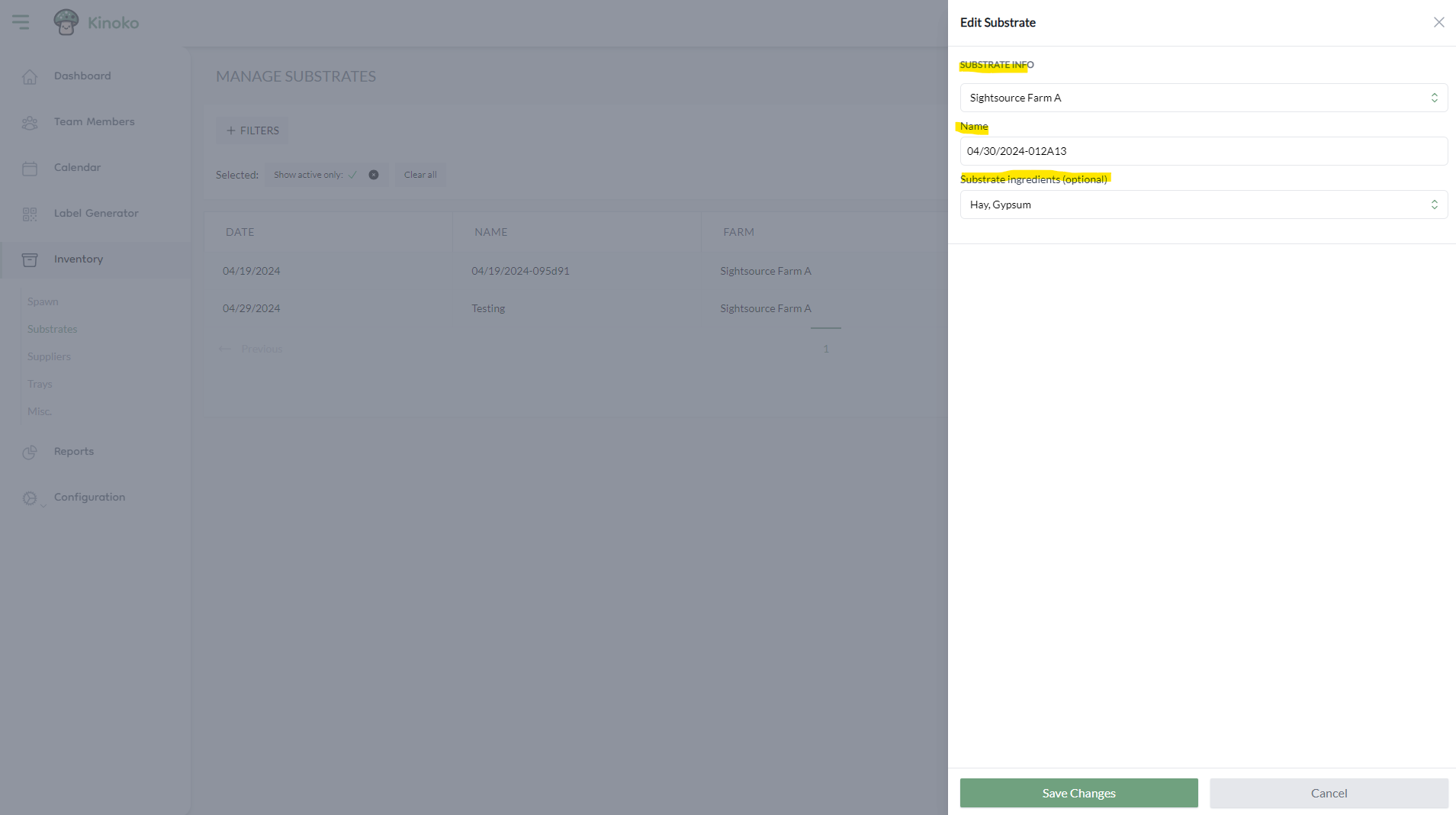
In order to create a batch, you must first have a substrate. To create a substrate, choose the 'Inventory' tab on the side navigation menu and then choose 'Substrates'. Then click 'Create new substrate' within the top right of the screen.
A side panel on the right will appear. You can choose which sub-farm to create a substrate for, the name of the substrate, and optionally add substrate ingredients:
2. Create a new batch
Navigate to the farm dashboard by choosing the 'Dashboard' tab on the side navigation menu. Select your sub-farm, and you should see the list of locations created earlier dropdown.
On the farm dashboard you will see 5 panels, each representing a different step in the mushroom cultivation process. Choose the pasteurization panel and click the tile that says 'Start a new batch':
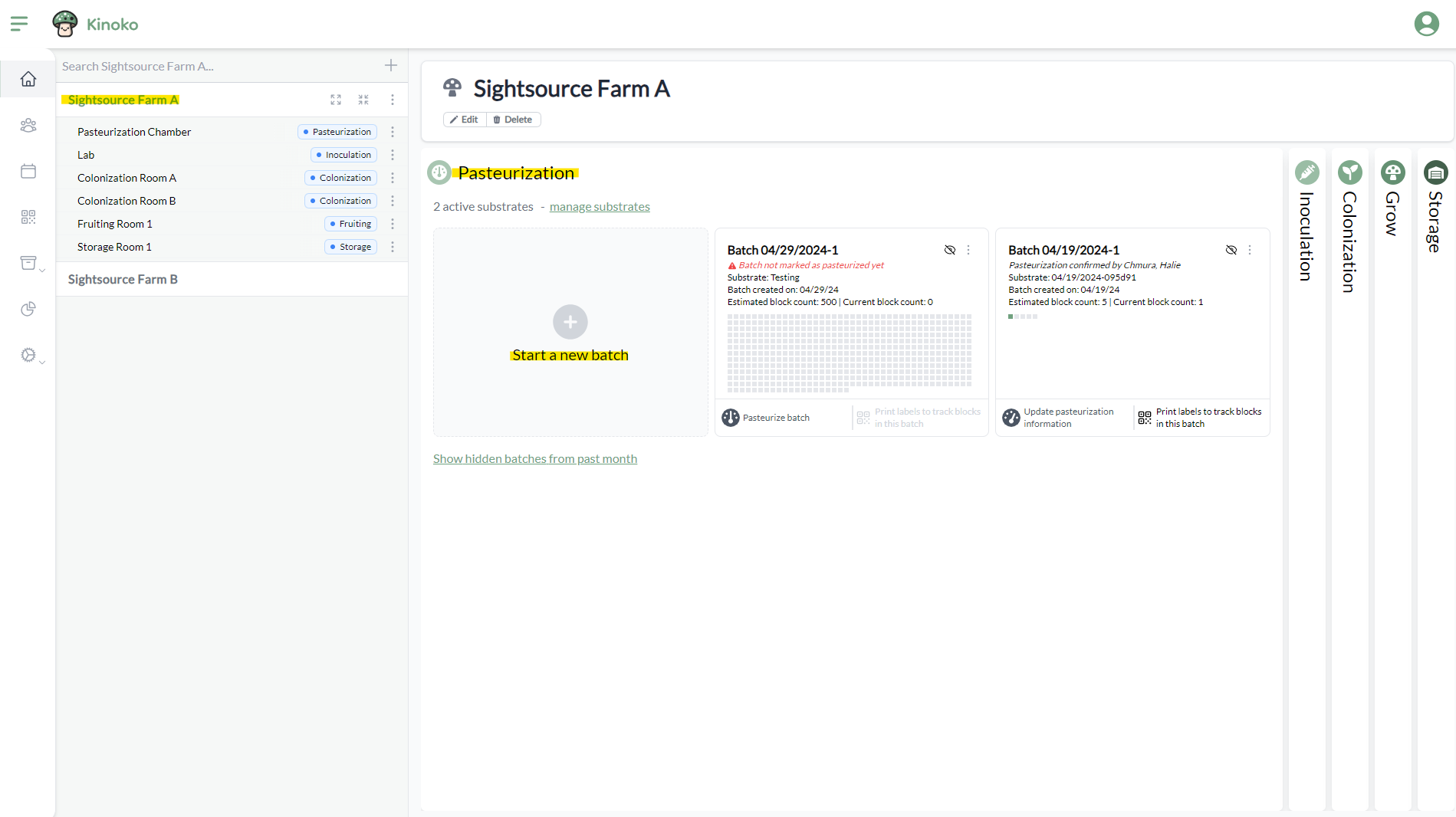
A modal will appear that will allow you to fill out information about the given batch. You will be asked to provide:
- Batch name - we autogenerate a name for you, but feel free to change this
- Block count - the estimated number of blocks within this batch
- Substrate - choose the substrate you created within the previous step
- Default bag weight & unit - choose the container weight of the blocks (e.g. all blocks in this batch are using 5lb bags)
After filling out the batch information, click 'Save changes' and you will see a new batch within the pasteurization panel.
When you created a batch in this step, you estimated the number of blocks within this batch. The blocks are not actually created at this time. Kinoko limits the number of blocks that are able to be created per month based on subscription tier. Because of this, blocks are created at a later point.
3. Mark batch as pasteurized
Before you can create a block in a given batch, the batch must be marked as pasteurized first.
To pasteurize a batch, find the batch within the pasteurization panel on the farm dashboard. Choose 'Pasteurize batch'. A modal will appear that allows you to enter the following information about the pasteurization of the batch:
- Pasteurization room - this is the location the blocks associated with this batch will be automatically put in upon creation
- Maximum temperature reached (optional) - you can optionally record the maximum temperature the pasteurization chamber reached
- Pasteurization time in hours (optional) - you can optionally record how long this batch was in the pasteurization chamber
- Disposed block count (optional) - this metric has no real bearing on the functionality of the website; it is simply a way for you to record how many blocks were thrown out during pasteurization
Batches will always show on the pasteurization panel until you choose to hide them. You can hide a batch by clicking the eye icon in the upper right corner of the batch.
Hiding a batch simply removes the batch from your dashboard but has no effect otherwise.