6. Transfer your first block
You will want to transfer a block whenever you move it into a new location. You can move blocks to rooms, racks, shelves, or slots.
The level of location specificity (i.e. using rooms vs racks vs shelves vs slots) is entirely up to you. Greater specificity will require more effort when transferring blocks but will yield richer and more precise data.
- Transfer block using mobile app [recommended]
- Transfer block using web app
There are 2 ways to transfer a block using the mobile app:
1. Transfer multiple blocks at once to the same location Scan a location QR code. You will be presented with a location dashboard and can choose the tile labeled 'Transfer Blocks'.
You will be presented with the following screen:
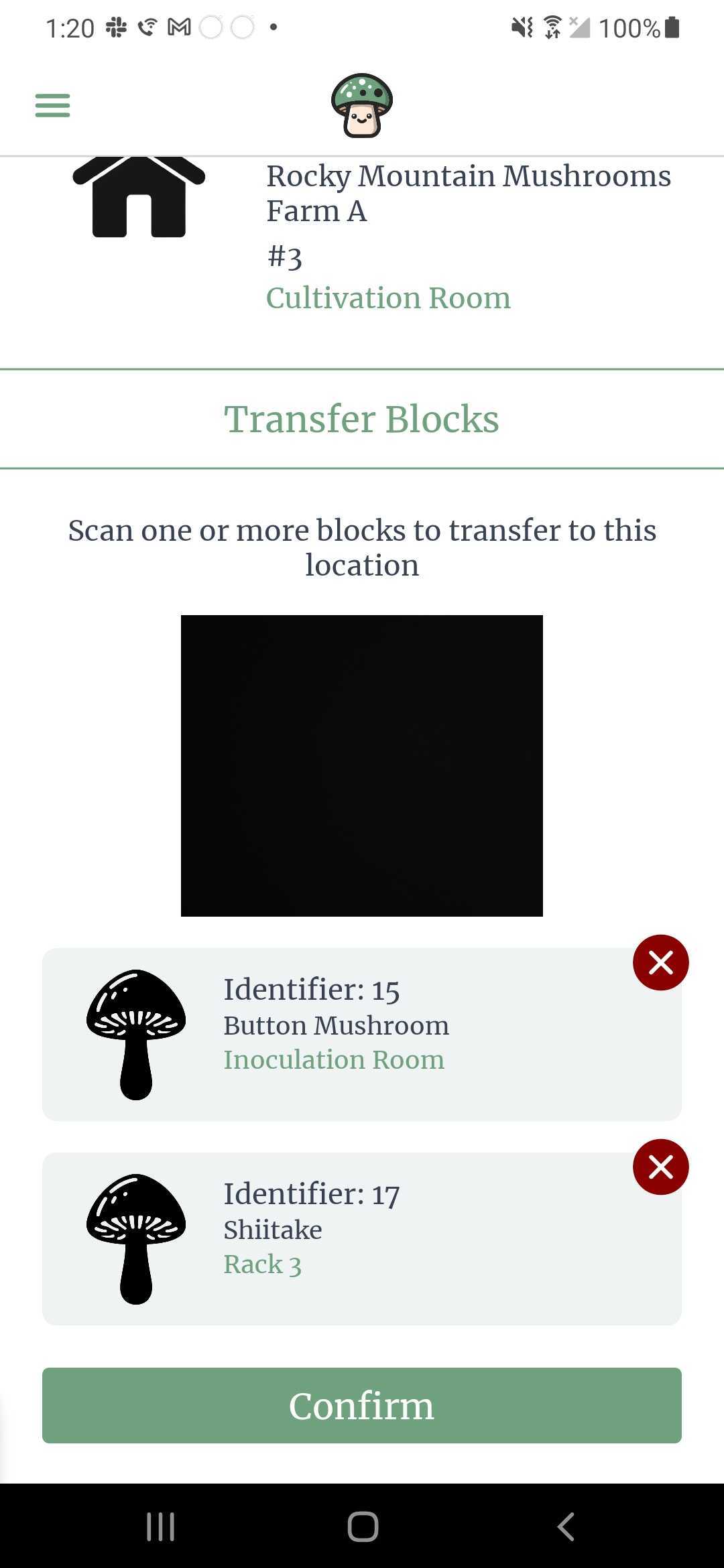
On this screen you can scan the QR code label of one or more blocks, and click 'Confirm' to transfer the block(s) to this location.
2. Transfer individual block to a location You can also transfer an indiviudal block to a location by scanning the block first. You will see the block dashboard and be able to choose the tile labeled 'Transfer'.
You will be presented with the following screen, in which you can scan the QR code label of the location you would like to transfer the block to.
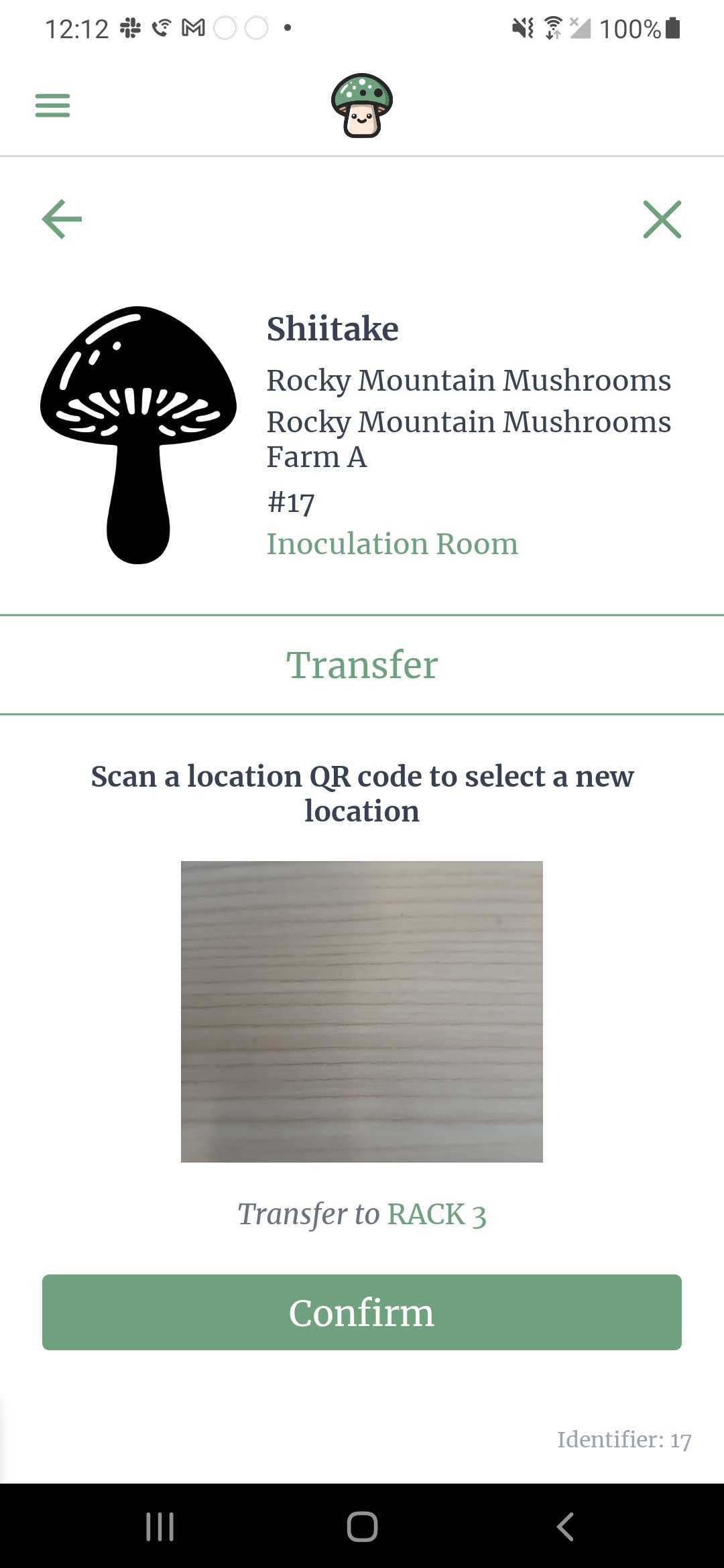
If you go back to the web app, you will see the transferred block within the new location!
To transfer a block via the web app, first find the block you wish to transfer. You can find the block by selecting a location within the sub-farm location menu, or you can do a global search by barcode identifier within the search bar.
Once you found the block you wish to transfer, you can drag & drop the block into a new location. Do this by clicking 6 dots on the left side of a block row, and drag the block onto a location in the left sidebar.

Blocks can only be moved into locations of type pasteurization, inoculation, colonization, and grow. They cannot be moved directly into storage locations (only trays can be moved into storage locations).