Genetics
Kinoko's Genetics module helps you track and manage cultures, samples, and strains in your farm's genetic library.
Cultures and samples are assigned unique barcode IDs and QR codes for easy tracking across both web and mobile platforms.
1. Manage Cultures
Step 1: Navigate to Cultures
-
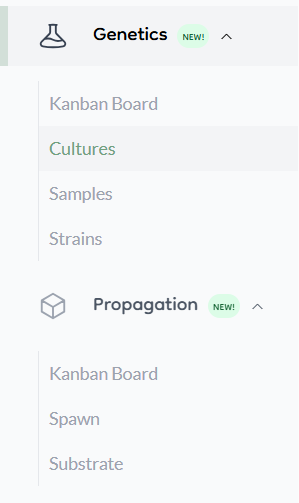
Click the Genetics tab in the side navigation.
-
Choose Cultures.
Step 2: Create or Manage a Culture
- Click Add New to create a culture.
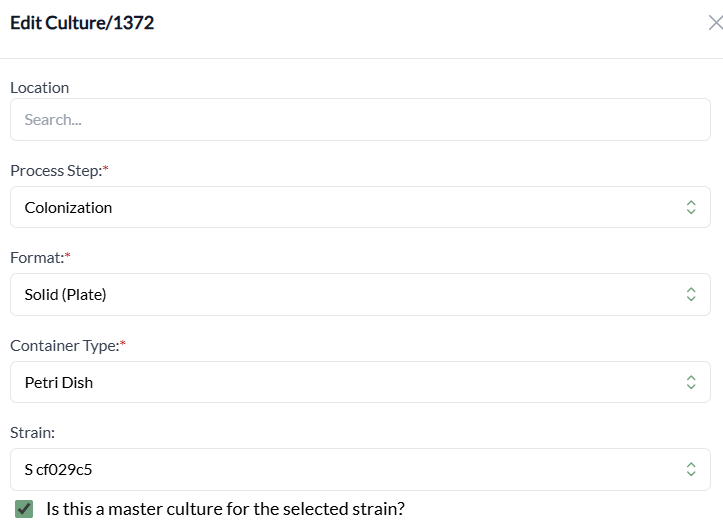
- Fill in details like location, format, and strain.
- Save changes to add the culture to your list.
Step 3: Track Observations
-
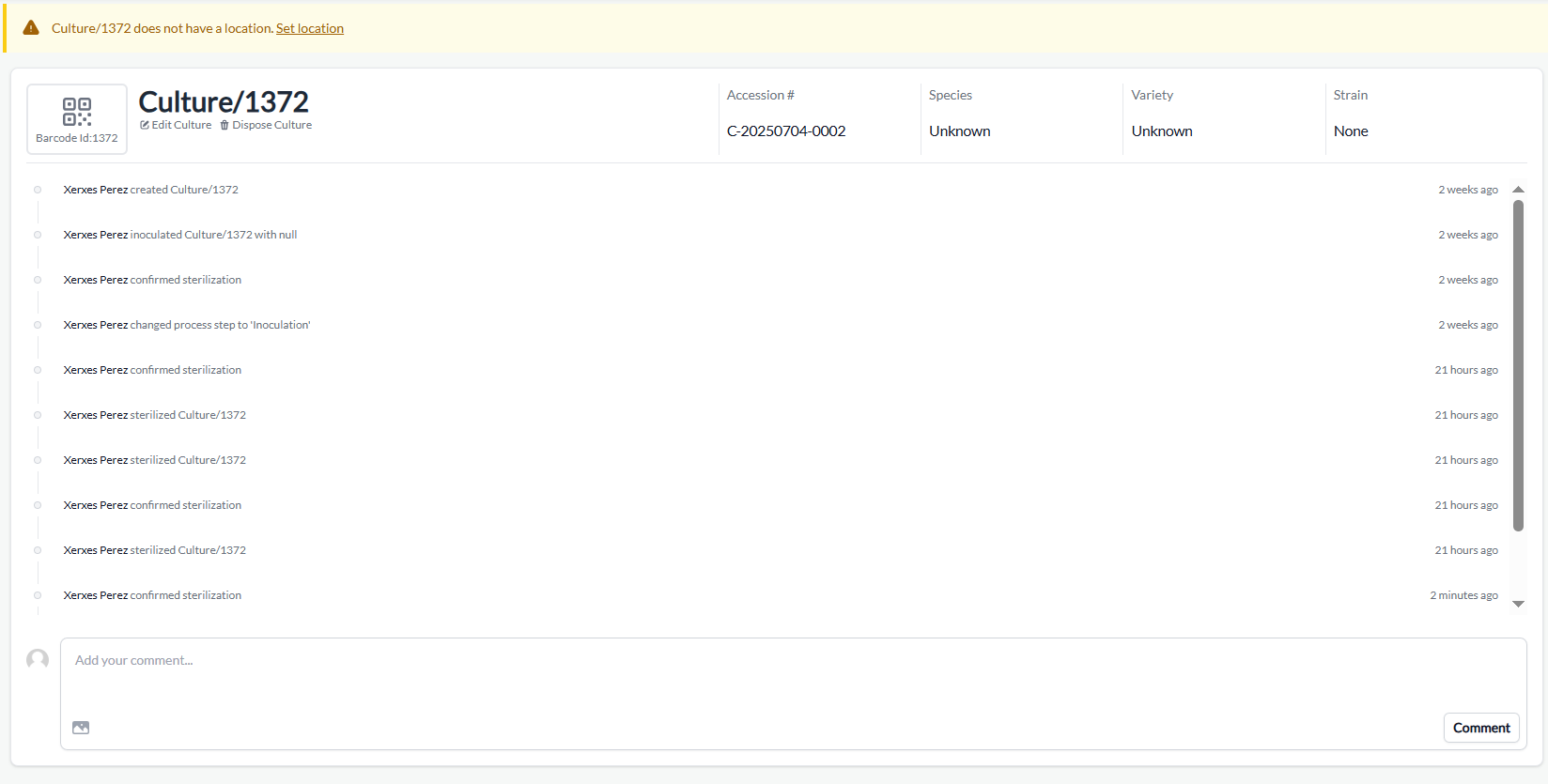
Click into a culture from the cultures list to:
- View its details.
- Add observations and attach images via the timeline feed.
- View or generate its QR code.
Step 4: Edit an Existing Culture
-
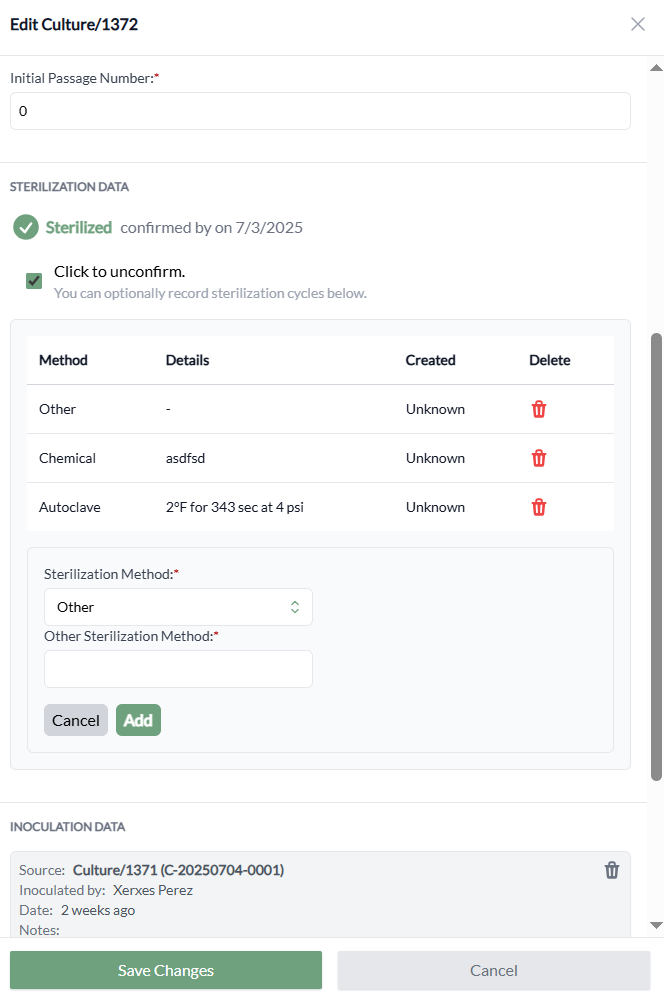
Click Edit Culture to update information, add sterilization cycle data, or assign a master culture.
Step 5: Move Culture Through Process Stages
Your culture will appear on the Culture Kanban Board, where it can conveniently be moved through the following stages:
- Preparation
- Sterilization
- Inoculation
- Colonization
- Storage
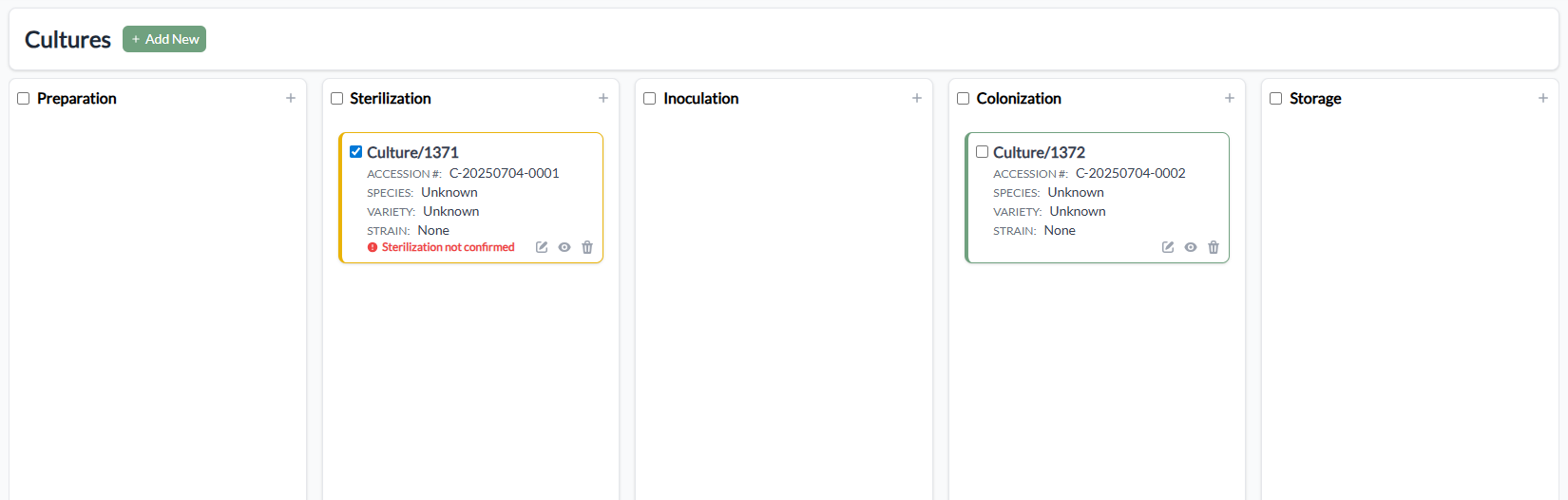
Select, then drag and drop the culture to its appropriate stage.
Culture management can be accessed through shortcuts on the Kanban Board screen. Select the pencil icon to edit a culture or select the eye icon to record an observation. You can also dispose of individual cultures or add a new one.
2. Manage Samples
Step 1: Navigate to Samples
- From the Genetics tab, select Samples.
Step 2: Create or Manage a Sample
- Click Add New.
- Fill in metadata like accession number, location, format, species, and variety.
Step 3: Track Observations
- Click into a sample to:
- View or add timeline feed entries.
- View or scan its QR code.
- Edit sample details as needed by clicking Click Edit Sample.
3. Manage Strains
Step 1: Navigate to Strains
- From the Genetics tab, select Strains.
Step 2: Create or Manage a Strain
- Click Add New to add a strain and enter data such as:
- Species
- Variety
- Linked Master Cultures
- Click into a single strain to view the strain information, including any linked Master Cultures and the process step of each linked culture.
- Select Edit Strain to update an existing strain.
