4. Create your first block
Now that you have your locations set-up and have created a batch, you are ready to create your first block!
A block can be created both within the mobile app and the web app. We will discuss both ways, but keep in mind we highly suggest using the mobile app for farms creating more than a couple of blocks per week.
Kinoko is subscription based and limits the number of blocks that can be created per month based on subscription level. When you create a block, a block in the remaining count per month is immediately removed.
- Create block using mobile app [recommended]
- Create block using web app
1. Print a block label
After a batch has been pasteurized, you are now able to print block labels for that batch.
Navigate to the pasteurization panel on the farm dashboard and find the batch you would like to print a block label for. Select 'Print labels to track blocks in this batch' on the batch tile.
You will be taken to the 'Label Generator' screen and taken through the same steps as when you were printing labels for locations (choose a template, choose the number of new block labels to print for this batch, print pdf).
2. Download mobile app and sign in
The Kinoko mobile app is available on both Android and iOS. Use the same username and password for the mobile app as you used to sign into the web app.
3. Scan a block label on mobile app
After signing in, you will see something that looks like the following screen:
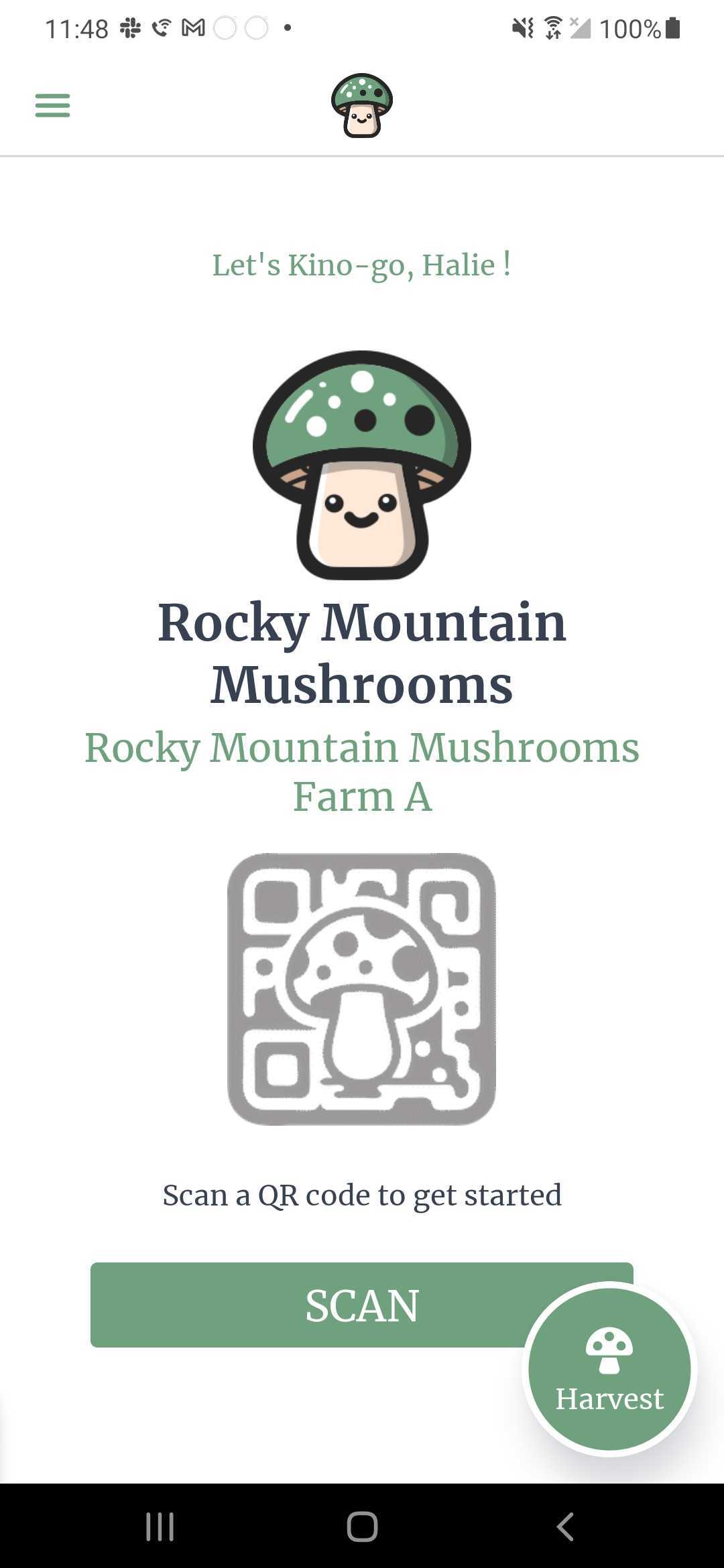
'Rocky Mountain Mushrooms' in the above image is a farm name while 'Rocky Mountain Mushrooms Farm A' is a 'sub-farm' name. You can switch 'sub-farms' using the hamburger menu in the top left corner.
Click 'Scan' and scan a block QR code label. When a QR code label is scanned for the first time, a block is automatically created. You have now created your first block!.
When a block is scanned for the first time, you will be automatically taken to a screen where you can inoculate the block. We will explain this further in the next part of the Quick Start guide.
1. Find the batch you want to create a block for
Navigate to the farm dashboard and choose the pasteurization panel. You should see the batch you created within the previous step. Click the 3 vertical dots in the top right corner of the batch and choose 'Create Block':
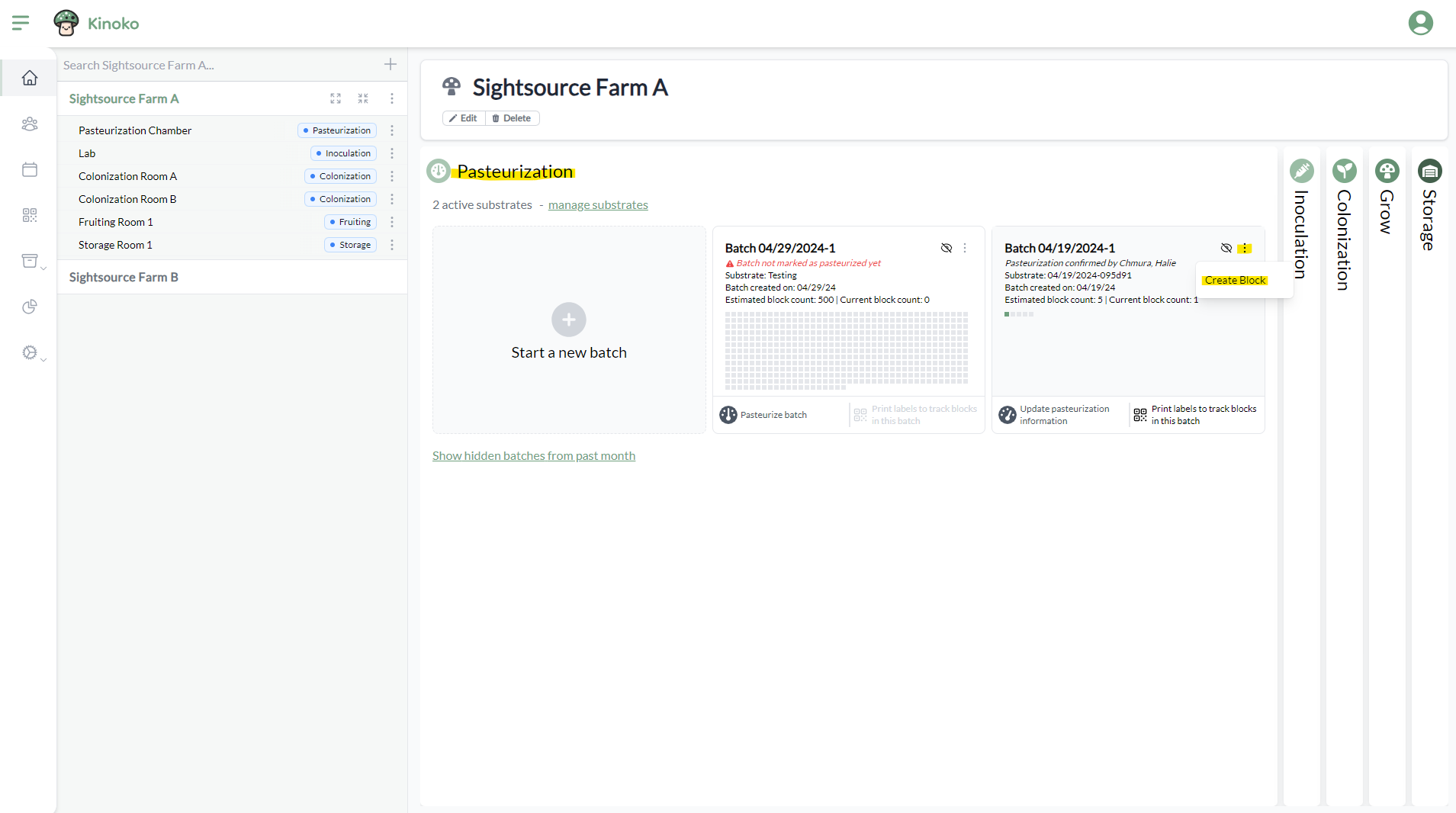
The newly created block is automatically placed into the pasteurization location you chose when creating a batch. You can click the pasteurization location on the sub-farm side menu and see your block!