Propagation
Kinoko's Propagation module helps you manage your spawn and substrate production, with a Kanban board for managing spawn process steps.
Track each spawn batch using barcode IDs and QR codes to simplify logging and tracking throughout your workflow.
1. Manage Spawn
Step 1: Navigate to Spawn
-
Select the Propagation tab in the side navigation.
-
Choose Spawn to view your list of spawn batches.
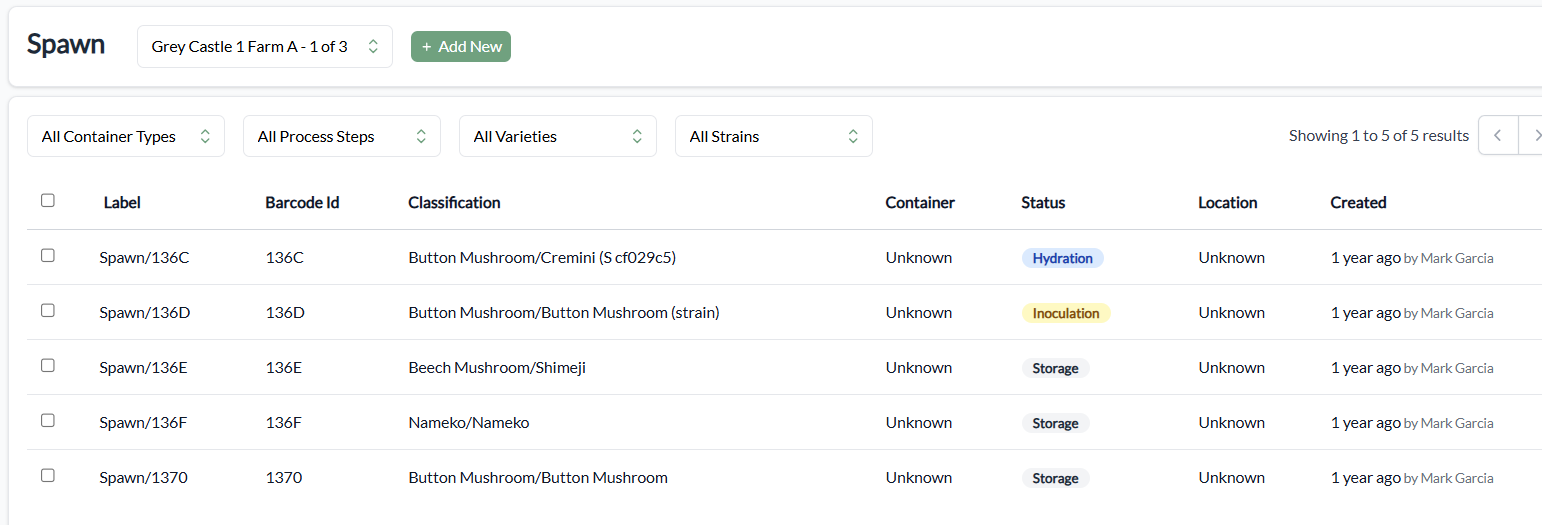
Step 2: Create or Manage a Spawn Batch
-
Click Add New.
-
Enter metadata fields like container type, quantity, process step, inoculation information, and any sterilization cycles.
-
Save the spawn batch.
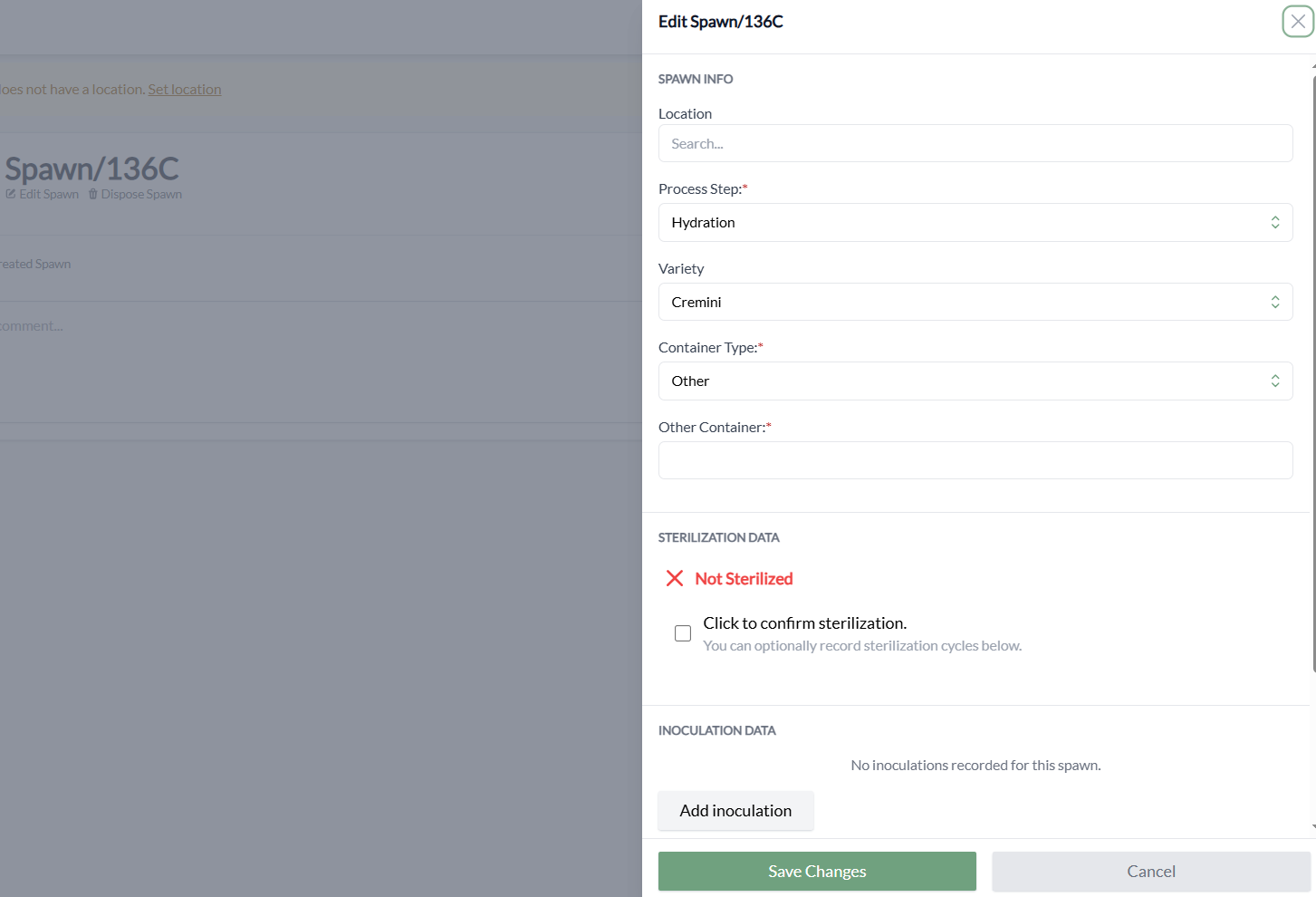
Step 3: Track Observations and Edit an Existing Spawn Batch
- Click into a spawn from the list to:
- View or add timeline feed entries.
- View or scan its QR code.
- Edit spawn details as needed by selecting Edit Spawn.
Step 4: Move Spawn Through Process Stages
In the Spawn Kanban Board, you can conveniently move spawn batches through the following stages:
- Preparation
- Hydration
- Sterilization
- Inoculation
- Colonization
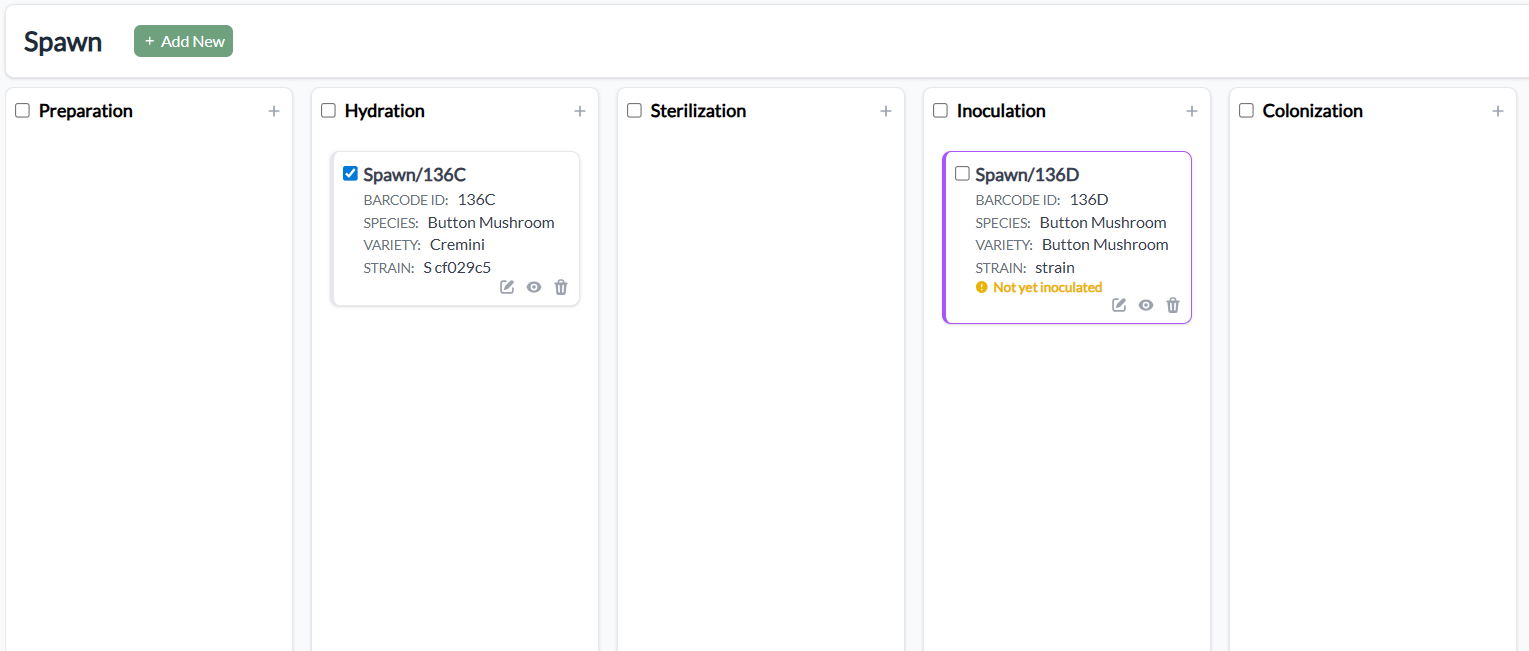
Select, then drag and drop spawn batches to their current stage.
Spawn management can be accessed through shortcuts on the Kanban Board screen. Select the pencil icon to edit a spawn batch or select the eye icon to record an observation. You can also dispose of individual spawn batches or add a new one.
2. Manage Substrate
Step 1: Navigate to Substrate
- From the Propagation tab, select Substrate.
Step 2: Create or Manage a Substrate Batch
- Click Add New Substrate.
- Record details like name and substrate ingredients.
- Save the substrate batch.