5. Inoculate your first block
1. Create spawn
In order to inoculate a block, you must first have spawn and an inoculation location (created in a previous step).
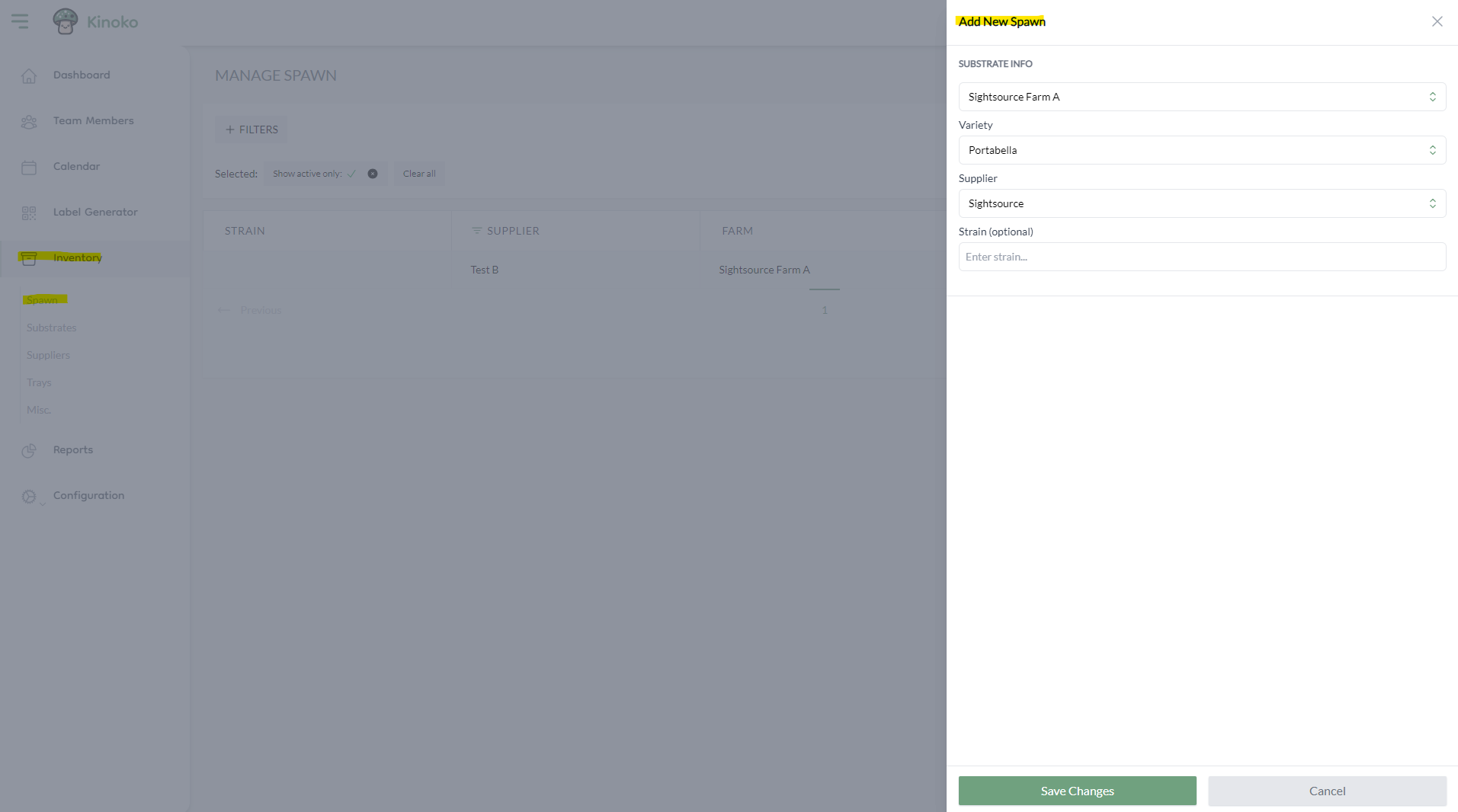
To create a spawn, choose the 'Inventory' tab on the side navigation menu and then choose 'Spawn'. Then click 'Create new spawn' within the top right of the screen.
A side panel on the right will appear. You can choose which sub-farm to create spawn for, the mushroom variety of the spawn, the supplier of the spawn, and optionally the strain of the spawn:
If you are creating your own spawn, you can create a supplier with your own farm name!
2. Inoculate block
- Inoculate block using mobile app [recommended]
- Inoculate block using web app
First, scan a block on the home screen of the mobile app.
There are 2 ways to get to the inoculation screen in the mobile app. You will either be automatically taken there if you have not previously inoculated the block, or you can choose the tile labeled 'Inoculate':
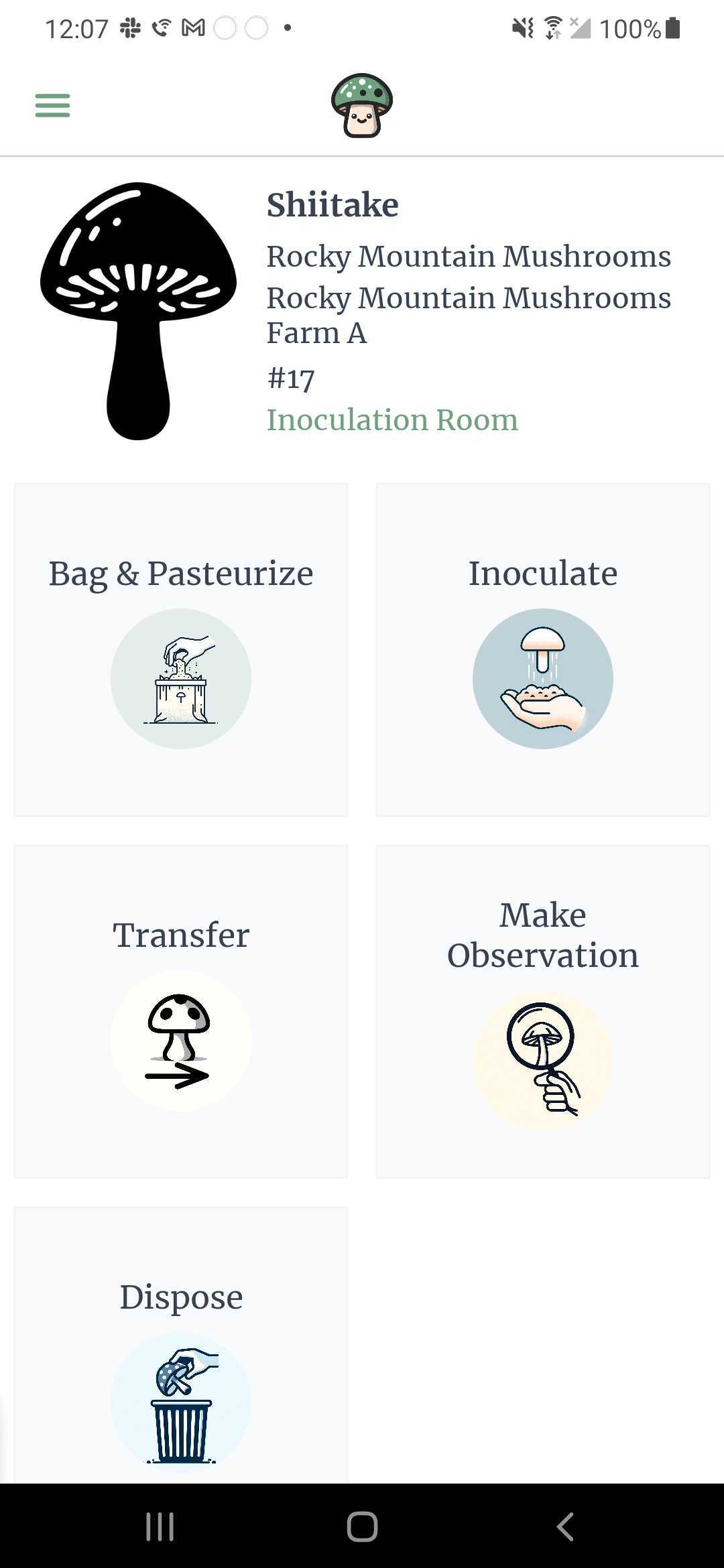
You will see a screen where you can choose the spawn you created in the previous step. You may also see a dropdown to choose the inoculation room (this only appears if the block has not been previously inoculated).
We suggest the first time you scan a block is when you are actually inoculating the block (but you can scan before!). You will automatically be taken to the inoculation screen within the mobile app if a block has not been inoculated yet.
The data on the farm dashboard is updated in real-time! This means as you inoculate a block, you will see the block immediately appear within the inoculation panel of the farm dashboard.
1. Go to the pasteurization location where your block is
When creating the batch in a previous step, you set which pasteurization location that the batch was pasteurized in. This location is where the block is intially placed when created.
You can view/change the pasteurization location of the batch by clicking 'Update pasteurization information' on the batch itself.
2. Find the block
Find the block you wish to inoculate in the table at the bottom of the pasteurization location view, and click on it. You will be taken to a new screen that shows the history of the block.
3. Inoculate the block
Choose 'Edit block' in the block header:
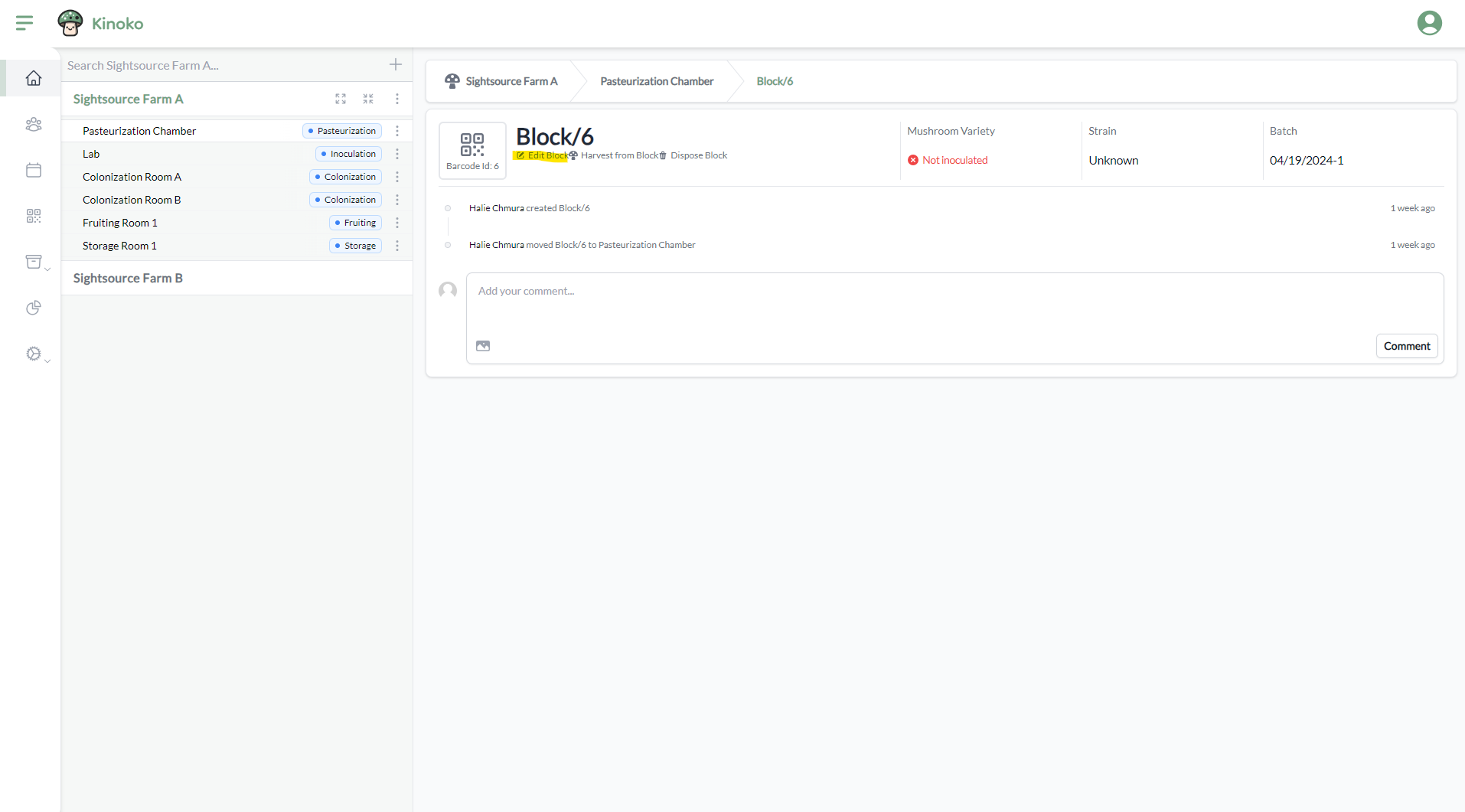
A side panel will appear where you can choose the spawn you wish to inoculate the block with.
Before you inoculate a block from the web app, you may want to first transfer the block into an inoculation room. See the next part of this Quick Start guide for more information on transferring blocks.