Location details screen
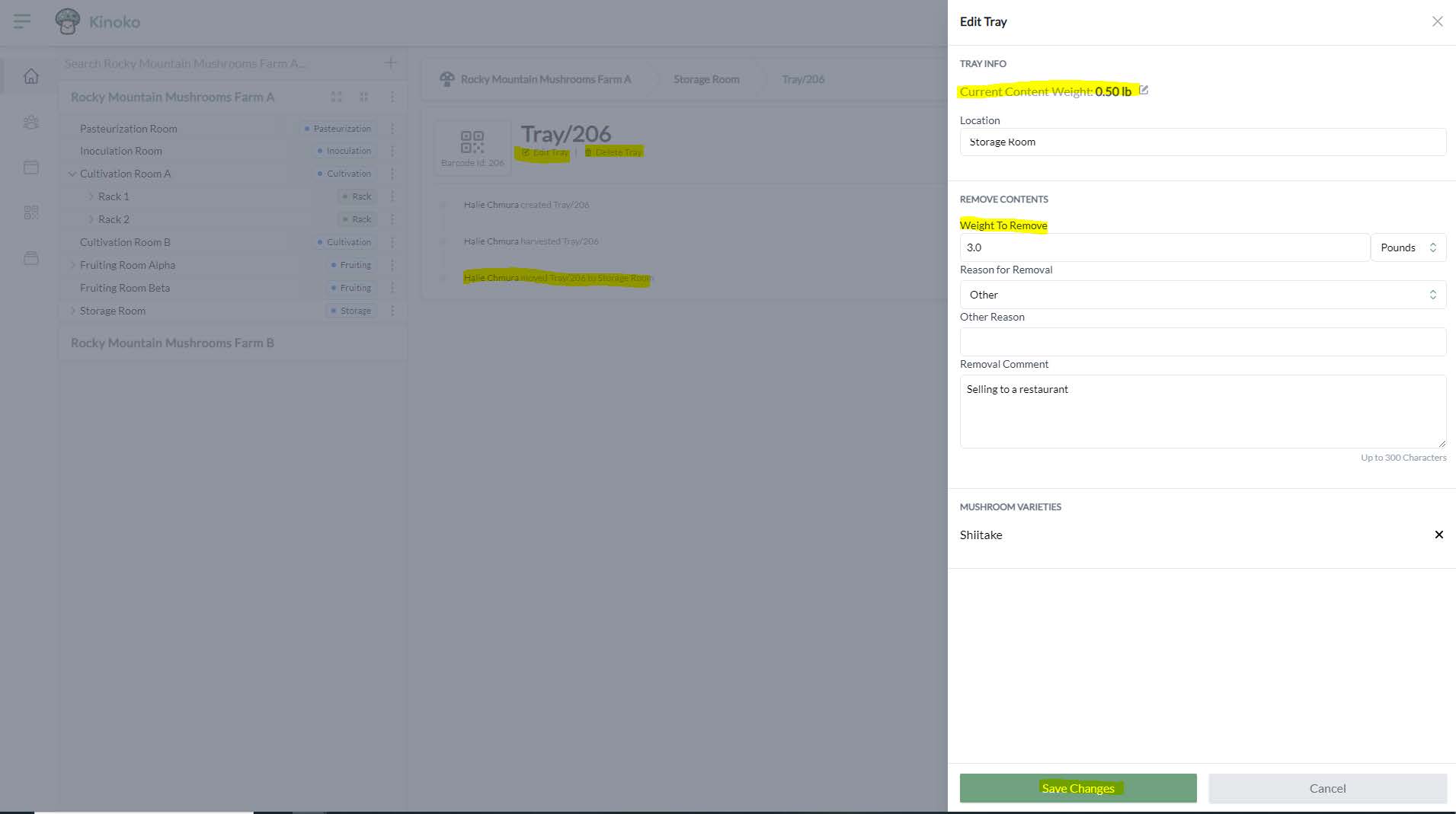
You can view the details of an individual location by clicking on the location name in the left side panel on the farm dashboard. On this screen you can see information about the location and perform various actions.
View metrics
In the header, you can view the most recent temperature, carbon dioxide, and humidity measurements of the location. You have the ability to inspect, edit, and delete each location.
Inspecting a location from the dashboard has the same functionality of creating a location inspection via the mobile app. Editing allows you to change the name of the location and add/edit sub-locations using the location wizard. Deleting allows you to delete the location from your sub-farm.
Be careful with deletion - you will also remove all blocks that are within the location. We reccomend transferring all blocks before deleting a location.
Underneath the location header, you can view metrics for temperature, carbon dioxide, and humidity for the past X days. You can change how many days you are looking back using the filter dropdown. Use the arrows to navigate between these three metrics. You can also view the full inspection history of a given location by clicking ‘View Full Inspection History’. This will show you all the location inspections that have occurred in the past for this location. Location inspections marked as priority will be highlighted.
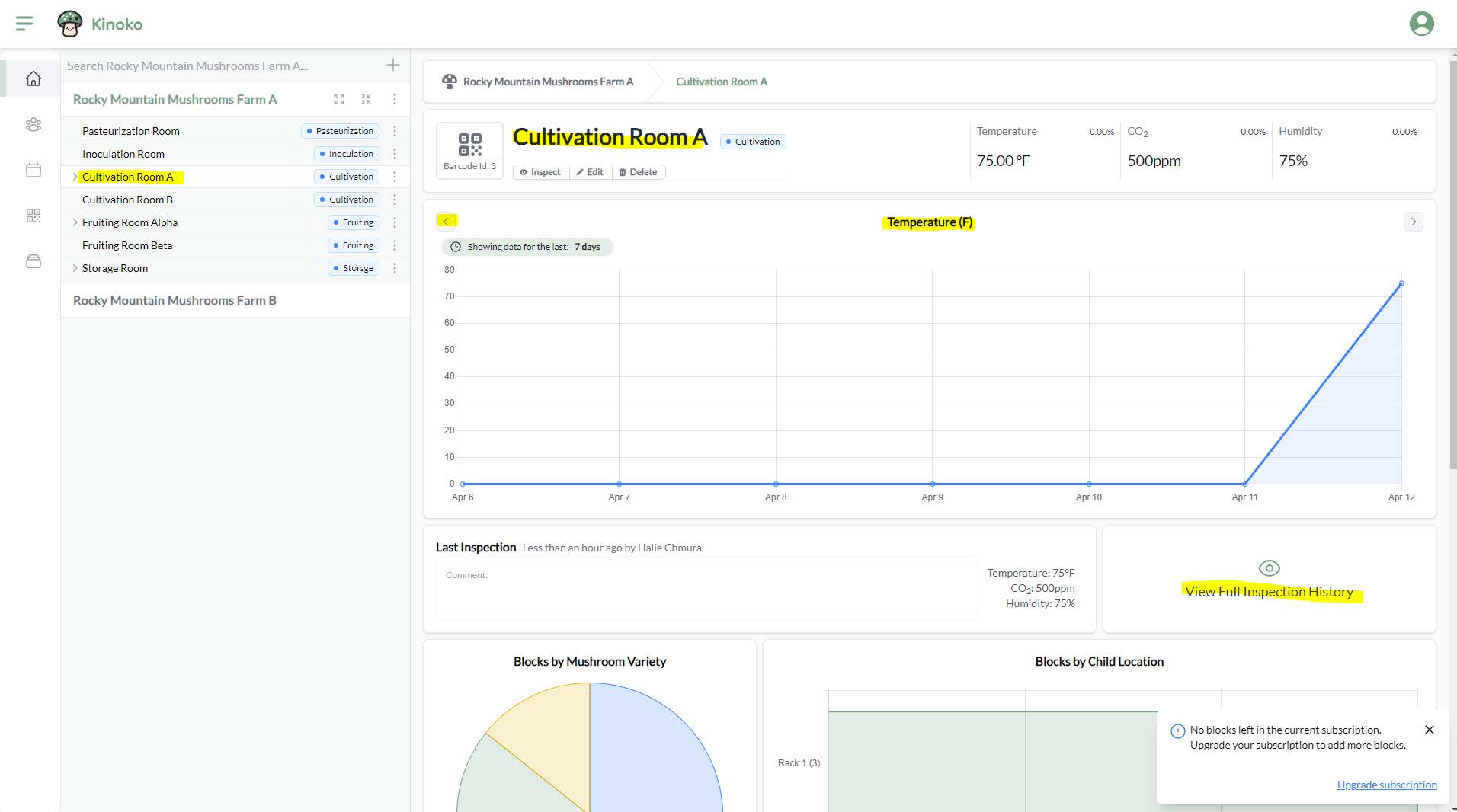
Underneath the location inspections, you can see charts representing the blocks within the location and its sub-locations. The pie chart shows the blocks of each variety type. The bar graph indicates how many blocks are within each of the sub-locations of the current location.
Underneath the charts, you will see a paginated list of all the blocks within the current location and its sub-locations.
Transferring blocks
To transfer a block via the web app, you can drag the block into a new location. To do this, you can click and hold the 6 vertical dots on a block. You will then see the valid locations on the left side panel highlighted. Simply drag and drop the block onto the location to transfer it.
Block view
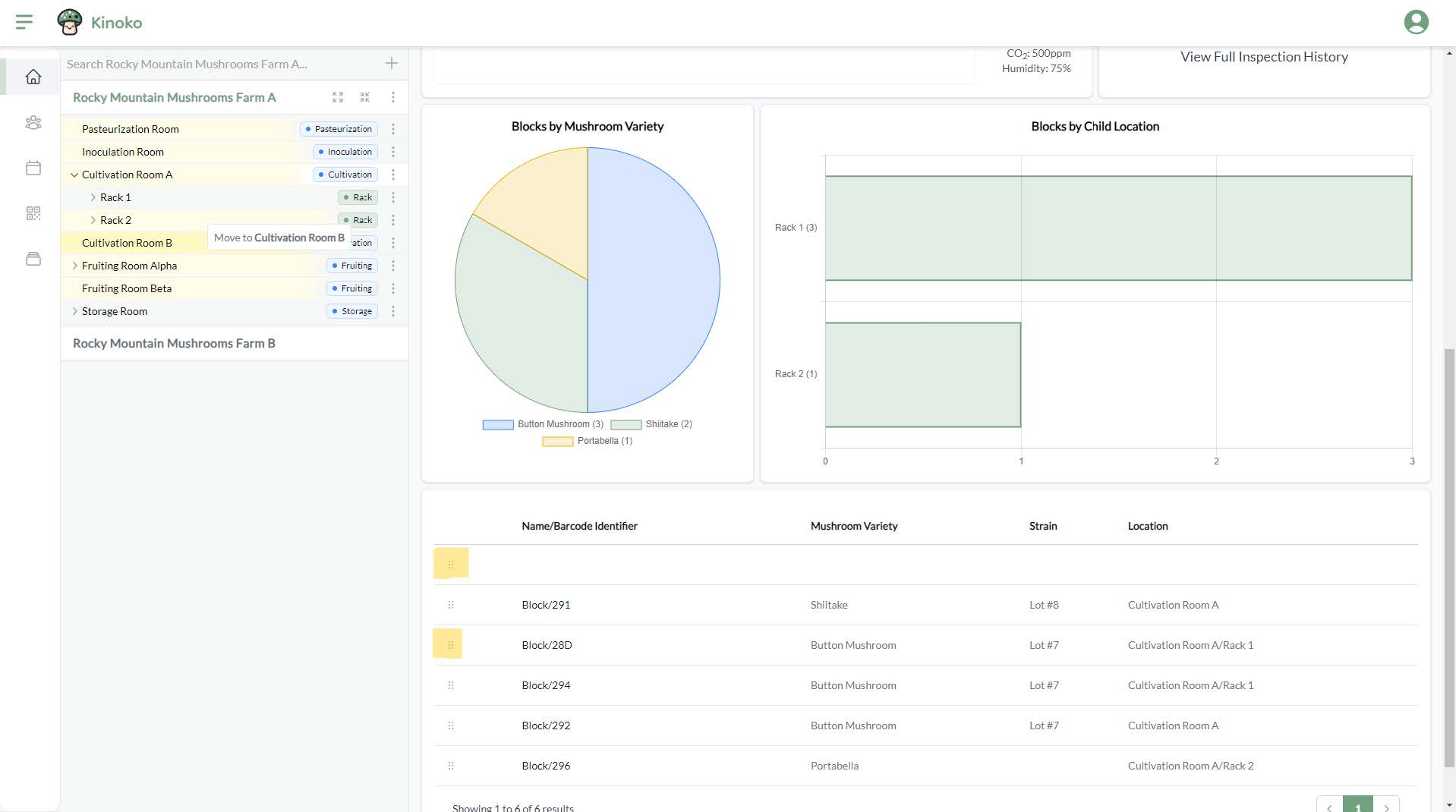
You can click on a block from the location detail screen to view the detailed history of that block. You can see when the block was inoculated, when it was transferred to a new location, when it was disposed of, and any block observations that were made on it. You also have the option to add a block observation, edit a block, and dispose of a block through the block header.
Tray view
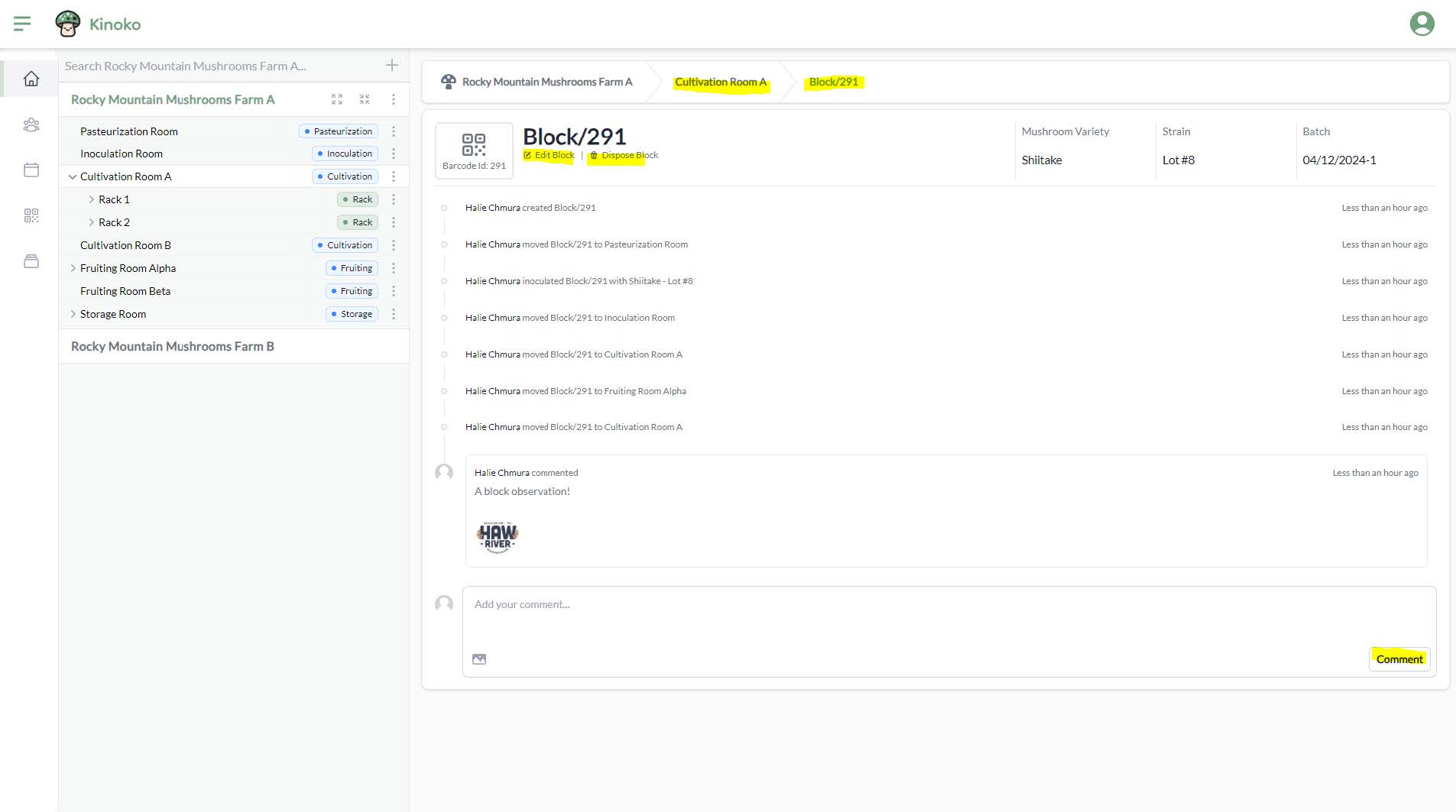
To see the history of a tray, you can click on a tray within a storage room. There you can edit and delete a tray. Within the ‘edit tray’ option, you can change the harvest content weight currently on a tray.