Scanning a block
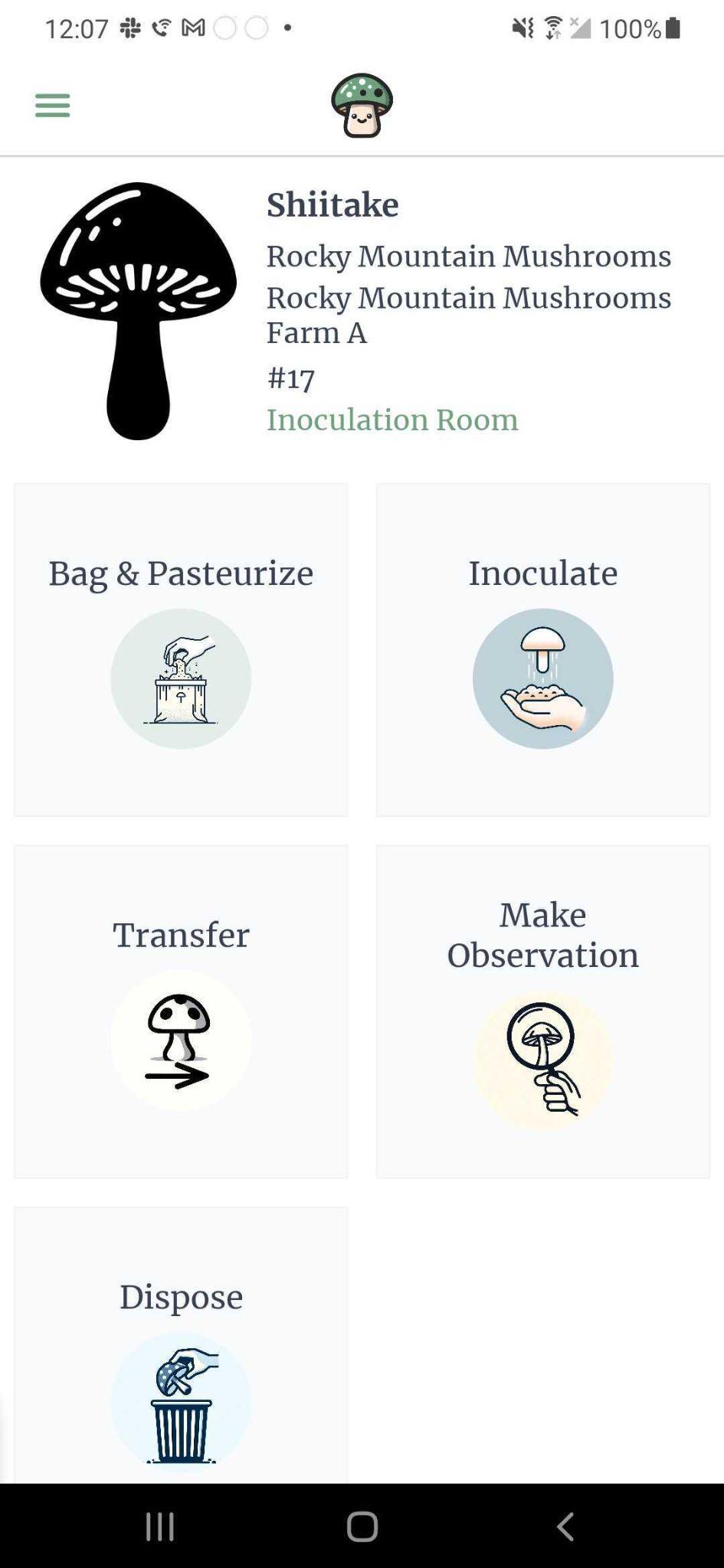
After scanning a QR code label that belongs to a block, you will be presented with a screen that has options of what actions you can take on that block and information about the block itself.
In the header of the block layout, you will be able to see which variety of mushroom the block has been inoculated with, the current location of the block, and the barcode identifier of the block.
The 5 actions you can take on a block are:
- bag & pasteurize
- inoculate
- transfer
- make observation
- dispose
Bag & pasteurize
A block is associated with a batch. When you created a batch, you selected the weight of the blocks (e.g. ‘each block in this batch is using a 10lb bag’). If you would like to change this weight later for an individual block, you can choose this step and change the weight.

Inoculate
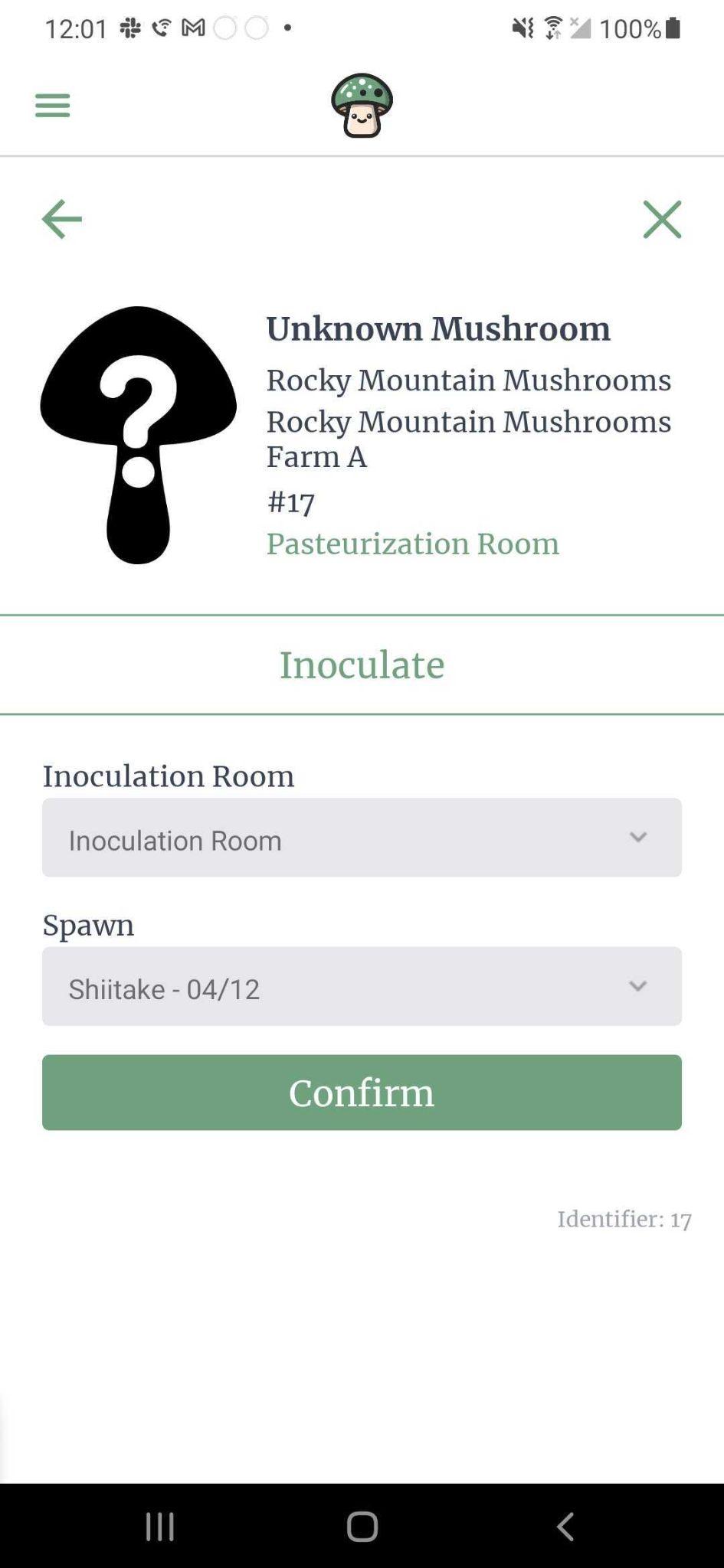
On initial scan of a block or when choosing the block step ‘Inoculate’, you will be presented with a screen to choose the inoculation room of the block and which spawn to inoculate with. The block will be labeled as ‘Unknown Mushroom’ until the block has been inoculated. The block initially starts out located within the pasteurization room selected when the batch was created.
As you keep on scanning new blocks in, we will auto select the most recent inoculation room and spawn that you chose.
Transfer
You can move a block to a new location. You will be able to scan the QR code label of a location to transfer the block. If you plan on transferring several blocks to the same location, we recommend you scan the location first and then choose ‘transfer blocks’.
Blocks can be moved to any location except for storage locations.

Make observation
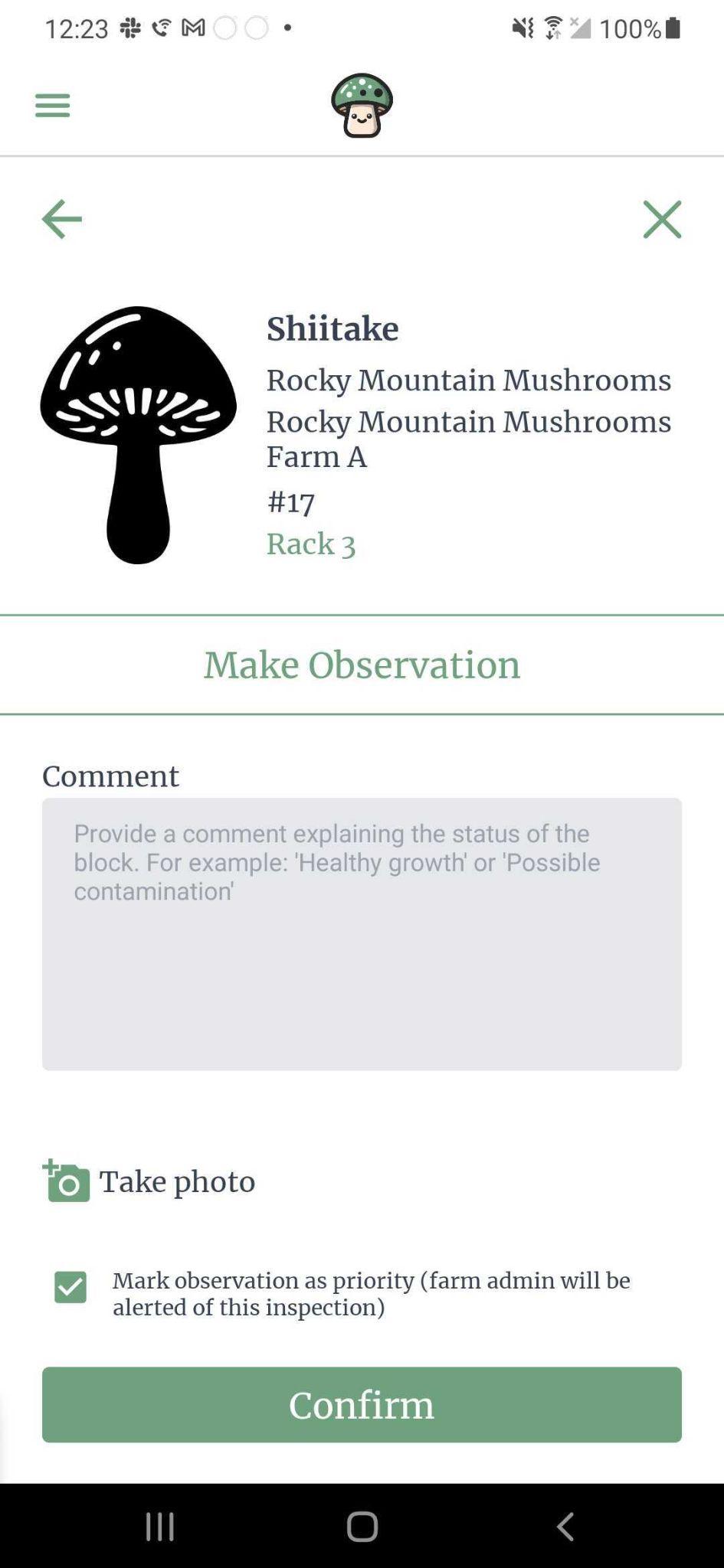
Kinoko allows you to track exactly what is happening to a block by creating observations on a block. If someone in your farm would like to note how a block is doing (whether good or bad), they can make an observation and add a picture, comment, and even mark it as a priority that someone needs to be notified of.
If an observation is marked as priority, the farm admin will see an alert on the farm dashboard to check this block out.
Block observations can be viewed on the location detail screen.
Dispose
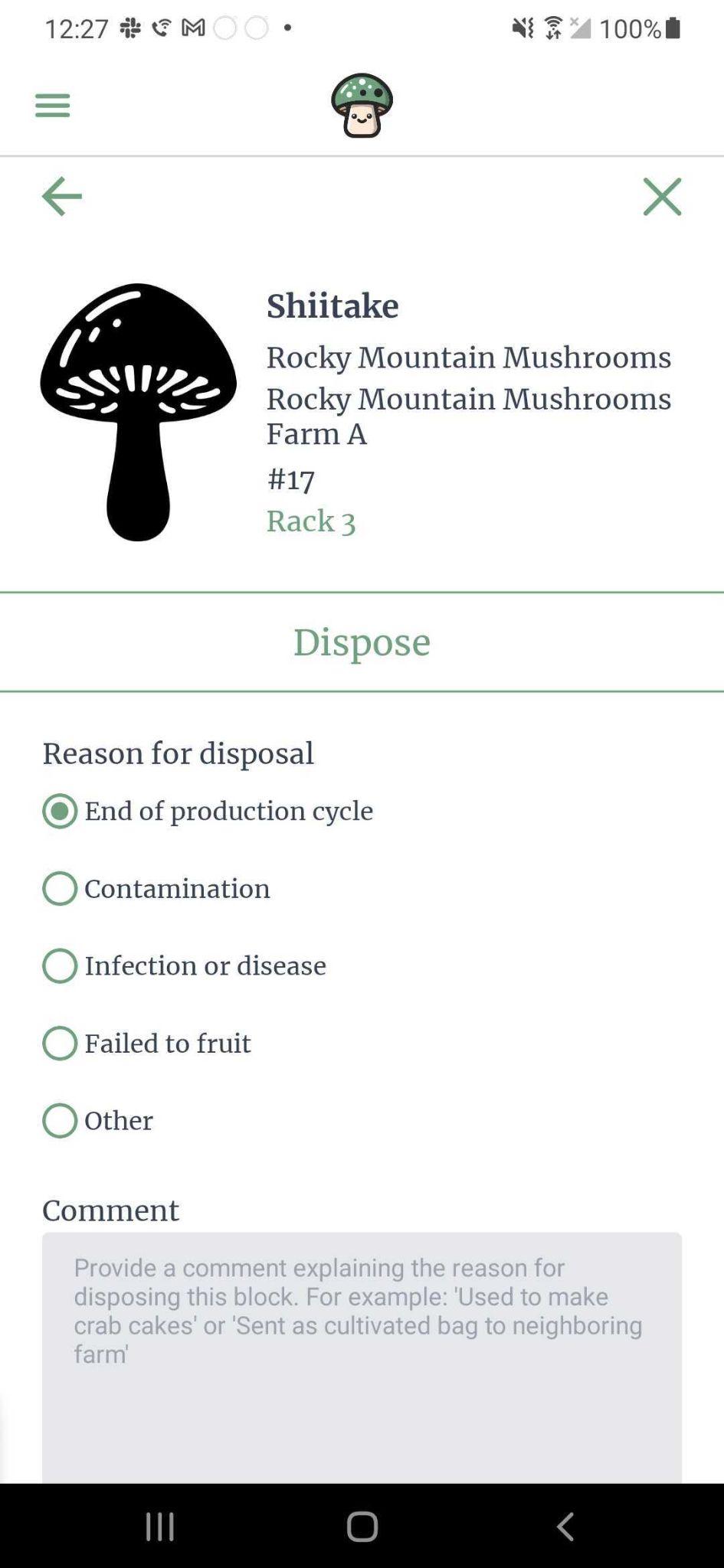
When a block has completed its harvesting cycle or has been disposed of for any reason, you can choose to dispose of the block. You will choose the reason for disposal and optionally provide a comment. The disposal reasons provided are configurable within the resource management screen.
Once a block has been disposed of, it can no longer be scanned.